

Creating accounts, teams and adding participants:
Making Changes, consent forms and viewing payments:
How do I create an account?
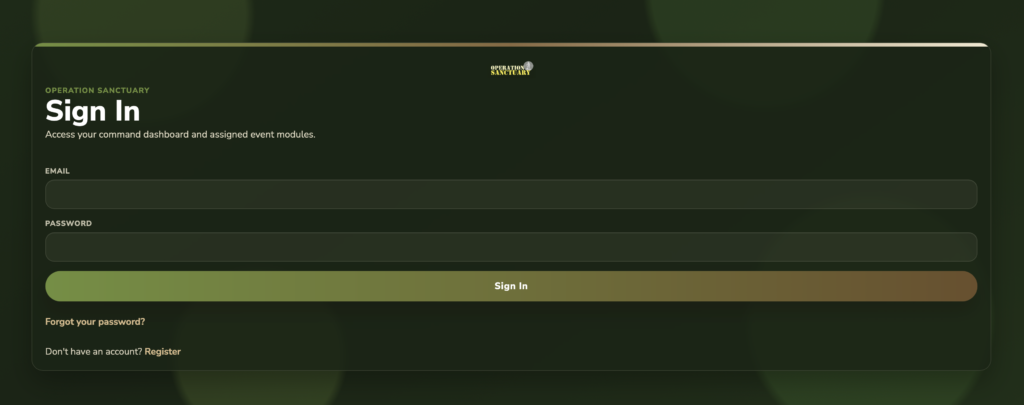
To create an account, navigate to the booking system, and select register. Submit your details, this will send you a code to verify your email address. Once logged in, you can complete your profile and then view your event dashboard.
How to create a team
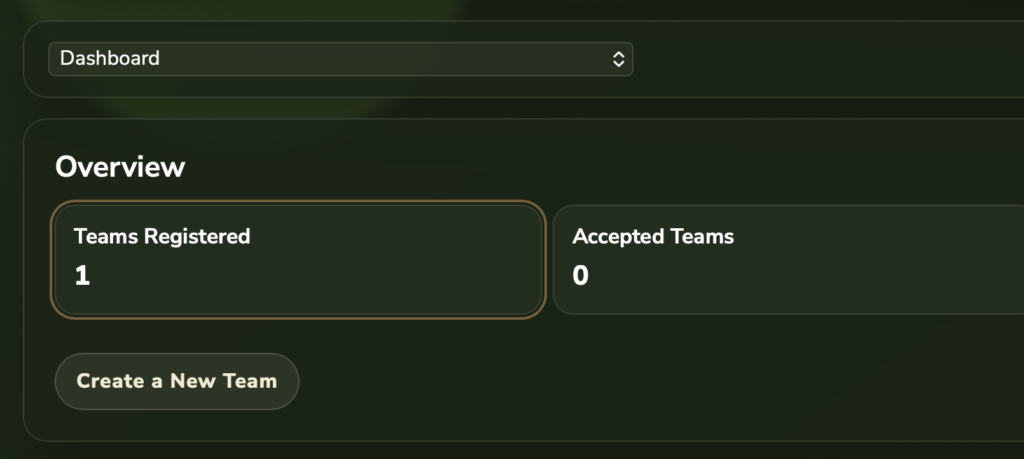
From your dashboard once logged in, select create a team, then choose the type of team you wish to enter, either fugitive or catcher. You will be prompted to enter some basic details on the team itself such as a name, or vehicle details if a catching team.
How to add a participant
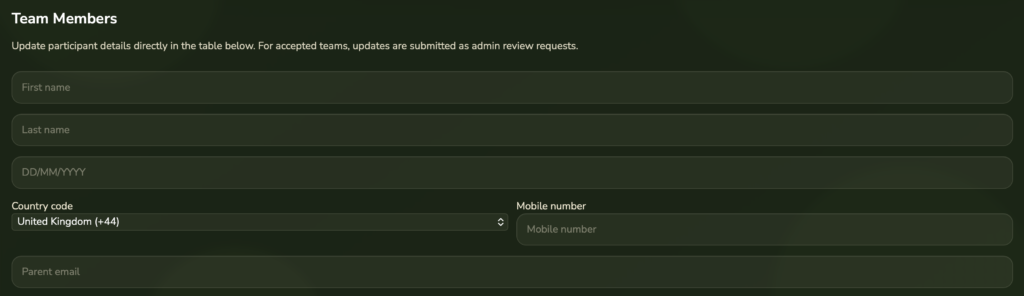
Once a team is submitted, you will be taken to the edit team page. Scroll down to ‘Team Members’ and start entering the personal details for each member. Check their personal details are correct, the booking system will flag to you any dates of birth or contact numbers which do not meet the expected requirements. Once all the participants for a selected team have been entered, click ‘Submit Registration’. Doing so will pass the details to the event organisers for review and send you your email confirming amount owed, and how to pay.
My Bookings Overview
Your bookings overview on your dashboard gives you a quick glance of what we know about you. Teams Submitted, Accepted Teams (approved/reviewed by admins), Total Participants, Outstanding Consent Forms. You can click on each of these groups to view data in more detail.

How to move participants between teams
This is a simple process currently, where you add the person to the new team and remove from the old one. Navigate to the main dashboard and open the relevant team, add a team member to the new team and submit. Navigate to the old team and remove, or submit a remove request. Note: If your team has already been submitted and approved, your change request will come to admin for approval as we may have already approved a complaint team.

How to request consent forms to be completed
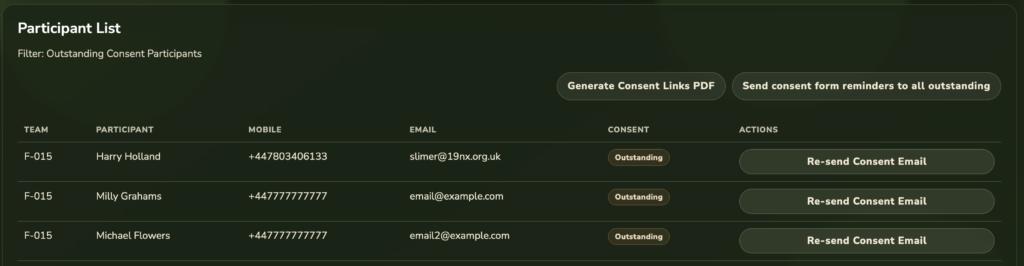
Using the “Outstanding Consents” button at the top of your dashboard, you will see the forms which are outstanding and for which fugitive. You can send individual participants their unique link or send all in one go via the button at the top of the table. Emails sent may not be instant, so only click once.
What payments have I made/still owe?
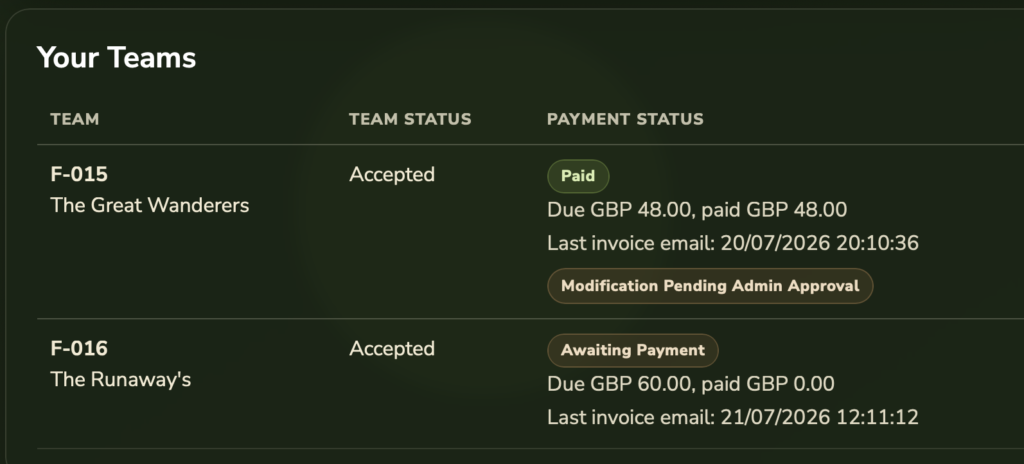
Payments are attached to specific teams, so it’s important you include your reference when sending your transfer. Money assigned to a team can be viewed in the main dashboard. Once a payment is marked as received, you will receive an automatic email receipt.